
Pak Fun Game on Android
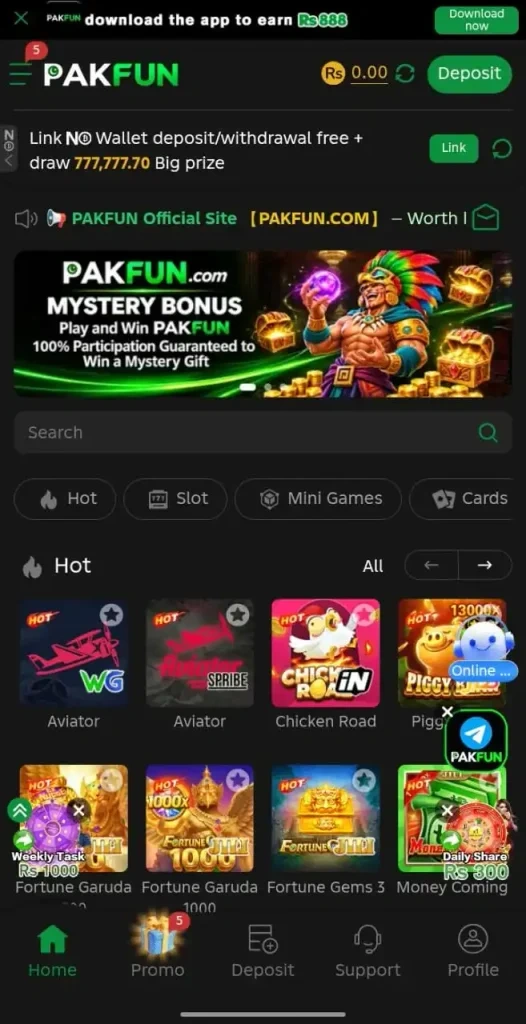
Open the lobby screenshot at full size and three things stand out immediately. The PAKFUN name sits at the top left, a rupee balance appears beside a green Deposit button, and game tiles fill the lower half of the screen. Pak Fun Game presents itself as a mobile gaming lobby with promotions and account features. If you came here for a Play Fun Game download, that visual combination is a better starting point for identifying the product than a familiar name alone.
This page brings together the Android listing and screenshots so you can see what you are looking for before leaving for a download. The app icon is black with a white PAK and a bright green FUN. A small crescent and star sit inside the first letter. In the lobby, the same wordmark appears above the game catalogue. The matching artwork helps connect the icon to the screen, although an icon on its own cannot establish who published an Android package.
The app is often described as an earning app. On the screens shown here, that description corresponds to prize banners, referral tasks and wallet-related features. The pictures show advertised amounts and an example account balance. They do not establish a regular income, the odds of receiving a reward, or whether a withdrawal will succeed. If you are deciding whether this is the product you want, start with what the interface actually offers and read the terms for any money-related feature separately.
Play Fun Game, PlayFun and the PAKFUN name
The difference between Pak and Play is easy to overlook on a phone keyboard. A search for Play Fun can mean a general request for a game, while PlayFunGame looks like the name of a particular app. Here, the product under discussion is the one whose artwork reads PAKFUN. We use Play Fun Game, PlayFun and PlayFun Game to help readers who arrived using those spellings find their way to the Android listing shown on this page.
Suppose a friend sends you a screenshot and says to look up “PlayFun.” Look at the image before choosing a search result. Does it show the black PAKFUN header, the green balance controls and a bottom navigation bar with Home and Promo? Or is it a different product with a similar name? A developer name, a package identifier and a publisher release page are much stronger identifiers than two words that happen to sound alike.
It is worth making that distinction before talking to support as well. If you need help with an account, naming the exact product and screen is more useful than writing “Play Fun isn’t working.” For example, “the PAKFUN Promo screen shows my task under Unclaimed” tells a support agent where to look. If the response describes a completely different menu or asks you to install a different application, check that you reached the intended operator before continuing.
Android download and version information
The v1.0 wording identifies this listing. A version number printed in a headline is separate from the version embedded in an APK. The screenshots do not show a package name, a version code, a minimum Android release or a file size. Third-party pages also give different version numbers. As a result, this site has no verified v1.0 installation file to serve. The Android download buttons on pakfun.onl open the external Pak Fun page at www.pakfun.co.
If you already have a file called PakFun.apk in Downloads, its filename alone will not tell you which build it contains. A file can be renamed. Look for a publisher notice that gives the Android package identity, release number and a matching download location. A checksum is useful when the publisher provides one for that exact release. A checksum posted solely by someone redistributing the same file offers little help in establishing its origin.
Android may also offer to open a website when you expected an installer. Those are different outcomes. A browser address leads to a page, while an APK is a package Android can inspect for installation. Notice which action actually occurred before trying another button. Keep Google Play Protect enabled, review any warning your phone displays and avoid installing a second package simply because a page labels it an update. You can still use the screenshots here to identify the layout without installing anything.
Check Android download availabilityFinding your way around the game lobby
Read the home screen from top to bottom. The upper strip promotes an app download. Below it, a fixed-looking header contains the brand, the balance and a deposit control. An announcement and a large promotional banner come next. Only after those elements do you reach the search box, the row of category buttons and the first game tiles. Knowing that order makes it easier to distinguish the lobby’s own search field from text inside a promotional graphic.
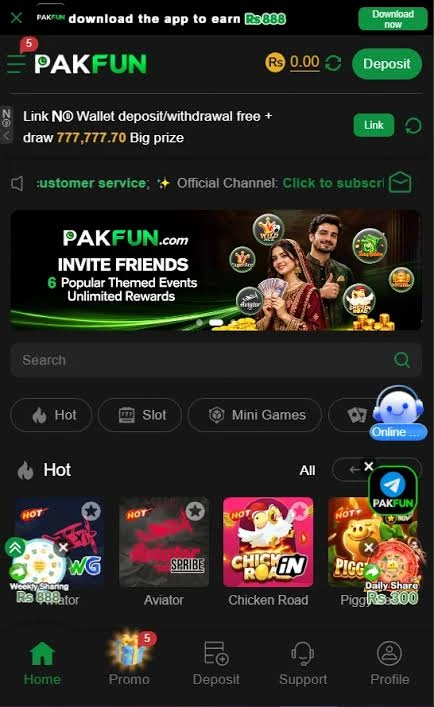
Two supplied lobby images illustrate how much of the screen can change while the product remains recognizable. One banner features a mystery gift. Another shows an invitation to bring friends to themed events. Look below each banner and you can still see a similar search field, game categories and bottom navigation. If your copy shows different artwork at the top, compare these more persistent interface elements before assuming that you have opened another app.
On the narrow screenshot, floating controls overlap parts of the game grid. The circular Online badge sits near the right edge, while a Daily Share badge covers part of a tile lower down. When identifying a game, read the title printed beneath its artwork. A badge positioned over a tile can belong to a site-wide promotion or support shortcut. Its placement alone does not tell you that the game offers the advertised reward.
View full-size lobby imagesGame categories and titles in the screenshots
The category row in the wider lobby shows Hot, Slot, Mini Games and Cards. Hot collects featured tiles on the captured screen. The label does not explain how the operator selected them or whether they are ordered by popularity. The other labels give you a way to narrow your view by the kind of game you recognize. The captures do not show what is currently inside every category, so the gallery records the visible examples rather than a complete catalogue.
Aviator and Chicken Road are among the readable tile names. There are two neighbouring Aviator tiles with different artwork, which is a useful reminder to look past the large title. For example, if you are describing the second tile to someone, “the red plane with SPRIBE on the artwork” identifies it more precisely than “the plane game.” The lower row also includes titles such as Fortune Gems 3 and Money Coming in the larger lobby image.
These examples help you recognize the screen; they do not tell you the rules of a round. A cartoon chicken, an aircraft and a wheel all suggest different visual themes, but the cover art leaves out how a stake is calculated, what ends a round and whether any money is involved. Those details belong to the rules for the individual title. If the rules or cost are unclear, leave the game unopened rather than inferring them from a tile marked Hot.
Reading the PlayFun Game promotions screen
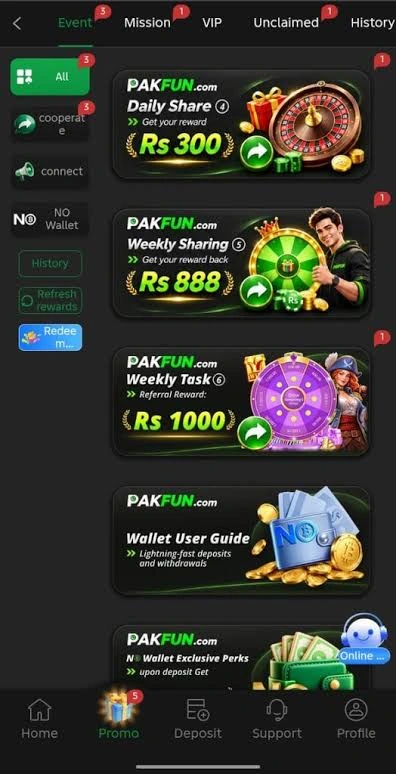
The promotions image has a different structure from the lobby. Tabs across the top include Event, Mission, VIP, Unclaimed and History. A vertical filter sits on the left and a stack of illustrated cards fills the main column. This is where the supplied images place Daily Share, Weekly Sharing and Weekly Task. The names sound similar, but the cards have different artwork and amounts. Use the full card title when you compare a promotion with its written terms.
Daily Share displays Rs 300, Weekly Sharing displays Rs 888 and Weekly Task displays Rs 1000. Those figures are transcriptions of the promotional artwork. None of the pictures shows how many participants qualify, what a participant must do, when an offer expires or how an amount is credited. A calendar label such as Weekly describes timing at a glance. It does not by itself establish a weekly entitlement to the number on the card.
For a concrete example, imagine that a banner advertises a sharing reward and your account still shows zero. First identify which offer you saw, whether it had written eligibility conditions and whether there is an entry under its own history. A screenshot of a banner only records the advertisement. An account history entry would be a different piece of information. Keep those records separate when asking about a discrepancy, and remove any personal details before sharing an image outside your account.
Balances, wallet prompts and withdrawal questions
In the larger lobby capture, the balance at the top reads Rs 0.00. Elsewhere on that same screen, a banner displays a much larger prize figure. The location of the numbers matters. The smaller figure belongs to the account header in that image. The larger one belongs to promotional copy. Adding the two together, or treating the larger figure as money available to withdraw, would misread the screen.
A wallet prompt also appears below the header. It invites the user to link a wallet and mentions deposits and withdrawals. The captures do not include a completed transaction, a fee schedule or a processing time. If you need to understand a balance entry, distinguish a deposit of your own funds from a promotional credit and an amount explicitly marked available for withdrawal. Look for those labels in your actual account terms; they are not interchangeable merely because all are expressed in rupees.
For example, a promotional credit might have separate conditions, while a deposited amount would ordinarily have a transaction reference that can be checked with the payment provider. The relevant records for a payment question are its date, amount, status and reference. Never put a wallet PIN, a one-time code or a complete payment credential into a chat message. The Support tab visible in the screenshots is a place to look for contact options; its icon alone cannot authenticate a person contacting you elsewhere.
Accounts, messages and Android permissions
The bottom bar gives Profile and Support their own positions alongside Home, Promo and Deposit. Profile is the sensible place to look for account-specific settings once you have identified the service. Support is the place indicated for help. The screenshots do not show the registration form, so they cannot establish whether the service needs a phone number, an email address or identity documents. Use the live service’s stated requirements when deciding what information you are prepared to supply.
If you are reporting a problem, a short account of what happened usually helps more than a screen recording of your whole phone. Name the tab you were using, the button you selected and the message that appeared. Include the time if the issue involves a transaction or an expiring offer. Crop out notifications, contacts and full wallet identifiers. A picture of the relevant error can answer a technical question without exposing unrelated conversations or payment details.
For Android permissions, match the request to the feature you deliberately opened. Selecting an image for a support ticket is a different task from reading contacts or receiving text messages. If the purpose of a request is unclear, pause and check the publisher’s explanation. Google’s Android Help pages explain what Play Protect checks on installed apps and why it sometimes warns about software from outside the Play Store. A familiar green logo does not replace those device-level checks.
Google Android Help · Play ProtectCommon Pak Fun download questions
Can you install the Android package on an iPhone? An APK uses Android’s package format. The images supplied for this listing contain no confirmed iOS release or App Store listing. If an iPhone opens a Play Fun page in its browser, that tells you the page can load. It does not demonstrate that the Android package will install or that a separate iPhone application exists.
Why does a Download Now banner in the gallery do nothing? The four images on this website are reference images. Tapping a gallery image opens a larger view so that you can inspect the labels. Buttons, wallet balances and category chips inside that picture are part of the captured screen. Use the Android download page for source information. No account registration, deposit or payment is needed to view this website’s pictures.
Does a different banner mean I have the wrong app? Compare the screenshots of the mystery bonus and invite-friends lobby. Both show PAKFUN branding with different promotional material. Look at several details together, including the domain, publisher identity, app icon and menu names. If a page uses the PlayFunGame spelling and offers a file from an unrelated location, a matching banner is too little evidence to identify the package.
Can the images confirm that Pak Fun pays? They can confirm the wording and amounts displayed in the captured advertising. They cannot confirm that any individual met the terms, received a credit or completed a withdrawal. For someone searching for an earning app, that distinction is the most important detail on the page. Read the applicable terms in full, and treat any game involving a stake as money you could lose.